Website backups

Anyone who has worked for any period using IT should know the importance of

  1. multiple forms (media), multiple locations and multiple versions(aged) of backup
  2. knowing and testing the restore process.

Backups

For the websites that I develop there are the following levels of backup:

  • When I develop the site, I keep a copy of the style, and any special functionality, as well as any initial content.  When I release it to a client, I generally send them a zip file for their backup safety, and as another location backup
  • The host I use does regular backups (File and database), which we have tested.  They  restored promptly with no problem.
  • I use one of the many backup plugins to run an automated extract of the database.  For small sites, this can be emailed weekly (to get it away from the hosting location).  For larger sites, the web owner or administrator has to arrange to ftp the backup to a secure location.
  • The emailed or downloaded backup then gets backed up again by my local backup software, which is of course done in several different ways!

The Website owner or administrator’s responsibilities

Treat the backups with the same care and respect that you would treat the legal deeds to your property, or your will.  That is if you are serious about your website. You may not know or be able to read the backup files sent to you.  The wordpress backups often use a free archive (zip) format called  Gzip, for which there are free “extractors”  (eg 7-Zip).

A technical administrator should be able to recreate the contents from the backup files.

  • Keep several versions of the backups, not just the latest.  There may have been a corruption of your website while does not get noticed for a while and you may wish to return to an earlier version.
  • Note the size of the backups – if it suddenly changes in size, and you have not made changes yourself, then it may have been hacked.  Tell your technical web site administrator asap – this may be affecting your appearance to the world and your search engine ranking.
  • Keep copies of any uploaded files that are not stored in the database.  If you are uploading these files yourself, then your web designer will not have a copy of these, unless you have an arrangement with them to backup your whole site in addition to the hosts backup.

Restoring

A backup is only as good as the ability to get the website backup and running correctly!   A website is composed of many components and each of these need to be able to be recreated.

  • the cms software – if free open source this cna be re-acquired, although reconfiguring could take a while
  • the templates and style – backups required when major changes are made
  • the database content (configuration options and visible content)
  • any separate files such as images, mp3’s etc

Note that restoring may take quite a while depending on what has happened and in what state the backups are.  For critical websites that need to be “up” constantly, one could consider a mirror site with hot backup. This is not easy  or cheap to do however.
Moving wordpress

Steps:

If changing database or moving hosting or domain:

  1. Make a DB backup, using a backup tool or phpmyadmin – we need the sql file in a format we can edit.  (Note you might want to take the opportunity to clean up the options table first, and get rid of any orphaned options – there are plugins to help with this. )
    1. Find the siteurl options – fix the url if necessary (eg if moving domains) – this will help avoid the “white screen” problem.
    2. If you want to change the table prefix, now is the time.  Do a search and replace on `wp_ and “wp_ and ‘wp_. Yes you could do wp_, but hey this is safer what if there was a wp_ in the middleof a word?
    3. You may to just check if anywhere there are any domain or location specific urls specified with absolute urls. Eg: search and replace “http://yourolddomain/youroldwplocation/” with “./”

Moving hosts

Check whether the localhost specification needs to change in wp-config.php file.  Eg: going to icdsoft, you may need localhost:/tmp/mysql5.sock.

Moving wordpress code location

  1. Move the WordPress Code
    1. Move your entire word press directory to where you want to keep it – eg: down a level: eg to …/wp
    2. Optionally move the wp-content sideways or somewhere else
    3. Create a copy of the index.php file and put it into the original directory
      1. Edit index.php and insert the new subdirectory into the file path.
        Ie: change
        require(‘./wp-blog-header.php’);
      2. to
        require(‘./wp/wp-blog-header.php’);

      3. Save and Exit.
      4. Test –  Browse to the blog url.  You should see your website but lacking style!
    4. Define where Content should live,
      1. leave it there or move it sideways.. whatever…
      2. Now go to the new subdirectory wp and edit the wp-config.php.  Add or change the following lines at the end of the file
        • define( ‘WP_CONTENT_URL’, ‘http://yourdomain/yoursubdirifany/wp/wp-content’);
        • define( ‘WP_CONTENT_DIR’, $_SERVER[‘DOCUMENT_ROOT’] . ‘/yoursubdirifany/wp/wp-content’ );
        • define(‘WP_SITEURL’, ‘http://yourdomain/yoursubdirifany/wp’);
      1. Check you also have at the end of the file
        • define(‘ABSPATH’, dirname(__FILE__).’/’);
        • require_once(ABSPATH.’wp-settings.php’);
      2. Save and Exit.  Test – refresh the browser window and now there should be style!

Move the Uploads folder

  1. You must check out what the upload path spec is doing. In 2.7 the default will put uploads under your main wordpress folder in a wp-content folder.   This does not make sense.   If you have problems – use the full url path. It may be a good idea to update this using multiple websites from one instances. Logon as admin, got to settings > miscellaneous and change before uploading

Test, Test

  • Primarily you will be testing your plugins that they are using these wordpress constants
  • Browse your website, check all the areas where plugins should be doing something
  • Test all the areas that do some kind of upload (shops, members)
  • do all the actions, comments, subscribe etc
  • Login as admin, browse around, check all is as it should be!
  • If you find a plugin that does not work, first check you have the latest version, then tell the author by commenting at wordpress or on the plugin page .  It would be nice if you would log it here too.

Rental Property Availability

A site that I help wanted to display property availability.  The clearskys availablity plugin seemed the best but was not quite working on my local wp 2.7 installation with wordpress relocated and separate content directory.

I got a bit carried away fixing it up a bit.   Changes made:

  • fixed to allow for wordpress in own directory, and relocated content directory
  • fix alternate logic of listing so shades will alternate
  • moved admin links to one section in admin  menu under Bookings for ease of user
  • allowed for additional properties through rudimentary include file – hopefully clearskys will provide a version soon.
  • changed to shortcode usage to upgrade and to avoid problems with validation (else wordpress insert a <p> before and </p> after – this breaks the validation.
  • developed a css file for the page calendar – for some reason their widget code and page code is different and delivers different css styling – add this to your standard stylesheet.

Disclaimers

Please note this is only intended as a temporary solution until clearsksy release an update which hopefully will cover all these points and more.

Live

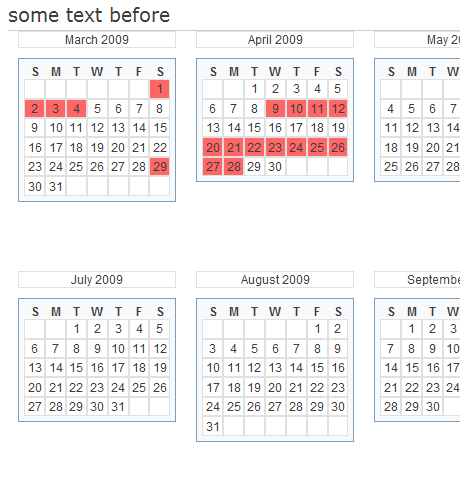
You can see it in work at http://bantrybayflat.co.za/.   At time of posting, there were no bookings to show, but it should look like this:

Multi  Month Calendar showing availability and booked dates
Multi Month Calendar showing availability and booked dates

More screenshots available in zip file.

Download at WordPress