Subscribe2 Admin – manage subscribers

I had remarked that I thought the Subscribe 2 admin subscriber could do with a few tweaks.  I was asked what I had in mind.  So here is is – a draft idea that has been coded, tested and validated – changes offered for potential inclusion in the next version!  There are a few other suggestions that have not been implemented here, however they would not be hard to add in, which I’d be happy to do if you would include them in the next version!

Summary

  • My non-tech clients need access to their subscribers, but not the other admin features – the subscriber list must be as clean and simple as possible.
  • The S2 subscriber list should be consistent with the wordpress user list and the look and feel of the processing should be similar.
  • It could be more obvious or intuitive as to the functions available (eg: send reminder is not visible unless you think to filter to “unconfirmed” only)

An alternative – tested and validated!

Sorted Alternate Subscriber List
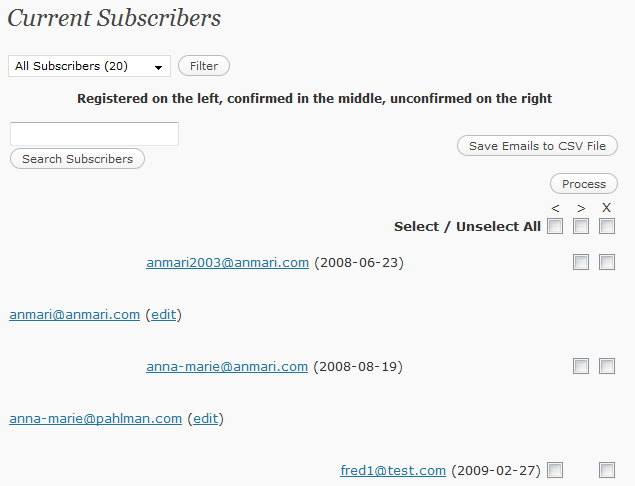
Current Subscribe 2 admin list

Normal wordpress user list

I have made and tested most of the necessary changes, and commented with /* amr */.  The code has been validated.

Changes implemented:

  • Moved the function check boxes to right hand side as in wordpress user list
  • Condensed the left, middle, right placement to a single list with the status indicated by
    • green registered character for registered
    • green tick for for confirmed
    • red question mark for unconfirmed
  • Moved the search input box and submit up alongside the filter box (same idea, should be together)
  • Changed default first view to be unconfirmed to highlight them and so that the “send reminder email” button will show.  Also though these more NB than the full list.
  • Changed $urlpath to use wp-config’s WP_CONTENT_URL.
  • Removed the sort by name and rearranged merge so the list will sort by status, with unconfirmed first, not email.
  • Fixed the “alternate” row css styling by using the wordpress user list css class for the table.

Further Changes Suggested

  • Move the “Subscribers” menu option from under Tools to under Users if possible.  To my mind that is where it belongs – along with the other user management screens
  • Add Column Headings as in WordPress User list
  • Allow sorting  options for the subscriber list eg: by email or status
  • Add totals of subscriber categories as per wordpress userlist.

Download subscribe2-alt1

For your convenience I have packaged up a copy of the whole alternate plugin folder. It is called subscribe2-alt1. Actually the only file affected is subscribe2.php. It will only be available here as my only aim is to assist Matthew Robinson the author, with the hope that by offering a fully tested change request, it may actually get incorporated in his next version!

  • unzip the  file to your plugin directory
  • deactivate subscribe2
  • activate subscribe2-alt1

Navigate to Tools > Subscribers to see the difference.

Further Info

I tweaked the submit buttons a bit to my liking.  On a narrower screen it looks like this (alas unsorted in this view):

Proposed Alternate for S2

On my wide screen…

which I imagine many developers are movingto the current admin list is uncomfortable for me:

Subscribe 2 Subscriber List

Multiple Blogs, Domains with wordpress

The configuration features now available in wp-config.php now offer you a great deal of flexibility if you have multiple domains parked at the same host or multiple blogs where you wish to share one or more of the database or  the code.

Move the wp-code

First of I’d suggest keeping the wp-code out of the main directory.   Read Giving_WordPress_Its_Own_Directory

This will give you the flexibility of serving other code more easily.  Eg: one parked domain may be redirected to a subdomain not using wordpress at all.

Defining the siteurl overrides the option table.  Plugin developers should use this and not fetch it from the options table.

define('WP_SITEURL', 'http://example.com/wp');
define('WP_HOME', 'http://example.com');

Index.php example:

if (strstr($_SERVER['SERVER_NAME'], "onedomain.com")) {
    // serve up the default wordpress index.php code
    define('WP_USE_THEMES', true);
    require('./wp/wp-blog-header.php');
}
elseif (strstr($_SERVER['SERVER_NAME'], "anotherdomain.com.))
{
    // redirect to the subdomain, passing the query string along
    header( 'Location: http://subdomain.anotherdomain.com'.$_SERVER['REQUEST_URI']) ;
}

If statement

In the wp-config.php file, code an if statement similar to above  to determine what your url request is (eg: which domain name) and set the appropriate field to achieve the effect noted below.

Plug-in authors beware – plugins must be tested with these various schemes

Plugins must use these constants or run the risk of not working on some installations.  Users should check all aspects of their plugins.

Configuration values

Multiple Installations in One Database

// You can have multiple installations in one database if you give each a unique prefix
$table_prefix  = 'r235_';   // Only numbers, letters, and underscores please!
define('DB_NAME', 'MyDatabaseName'); // Example MySQL database name

Share Code, but not Themes or Plugins

Move the wp-content directory and define the following:

define( 'WP_CONTENT_DIR', $_SERVER['DOCUMENT_ROOT'] . '/blog/wp-content' ); and
define( 'WP_CONTENT_URL', 'http://example/blog/wp-content');

Warning if Moving

Don’t forget to change the settings in the Miscellaneous settings for your uploads

Advanced Options

There are more advanced options too, using for example:

  define('TEMPLATEPATH', get_template_directory());
  define('STYLESHEETPATH', get_stylesheet_directory());

Note: beware:
Multiple domains sharing the same wordpress installation must have the same permalink structure - changes to one will edit the .htaccess, which will then override the previously set permalink.

Submenu, Page, slug, attached media confusion

I had a really odd one today.  A client had added text to a submenu page that was either empty or just had an image.  Once she had saved and wanted to view the page, wordpress just kept bringing up a set of images with the page slug in the title (‘jazz’).  One could not get the page itself to display, not in preview, not at all and not even when following the menu tree.

The image was displayed along with others in the parent page – intended as a kind of image list to the sub menu pages.  I suspect that somehow this was causing the problem getting to the correct sub menu page.

The page can be edited from the admin area, but is not displayed in anything other than edit mode unless one changes the “slug” to something else (eg: ‘jazz classes’).   One can reverse the process – ie: change the slug back to ‘jazz’ and the problem comes back.   Changing the title does not seem to make any difference.

I had not yet upgraded to 2.7, so I did that – actually to 2.7.1 now in the hope that that would fix it, but no,  the behaviour remained.  It was also happening on other similar pages (eg:’ ballet’).

Not a theme problem

Just to be sure I switched to the default theme and it’s the same.

Examples of links

Menu – sub menu item link:

http://…/dance-classes/jazz/

results in a selection of images that have “jazz” in their nameand the “edit post link”  thinks it needs to edit media

http://…/wp-admin/media.php?action=edit&attachment_id=12

If one edits the post and then does a preview, giving url

http://…/dance-classes/jazz/?preview=true&preview_id=18&preview_nonce=06b1fc7fca

one is back to the set of pictures and not the text

jazz-edit

jazz-preview